Settings
ARES: THE IRON VANGUARD provides a comfortable gameplay environment
and supports various settings to customize your experience.
Please read on for more details.
* ARES: THE IRON VANGUARD is available on both mobile devices and PC.
Please note that this guide is based on the PC version.
* This guide was created in a test environment, and some content may be subject to change.
◈ Settings: How to Access
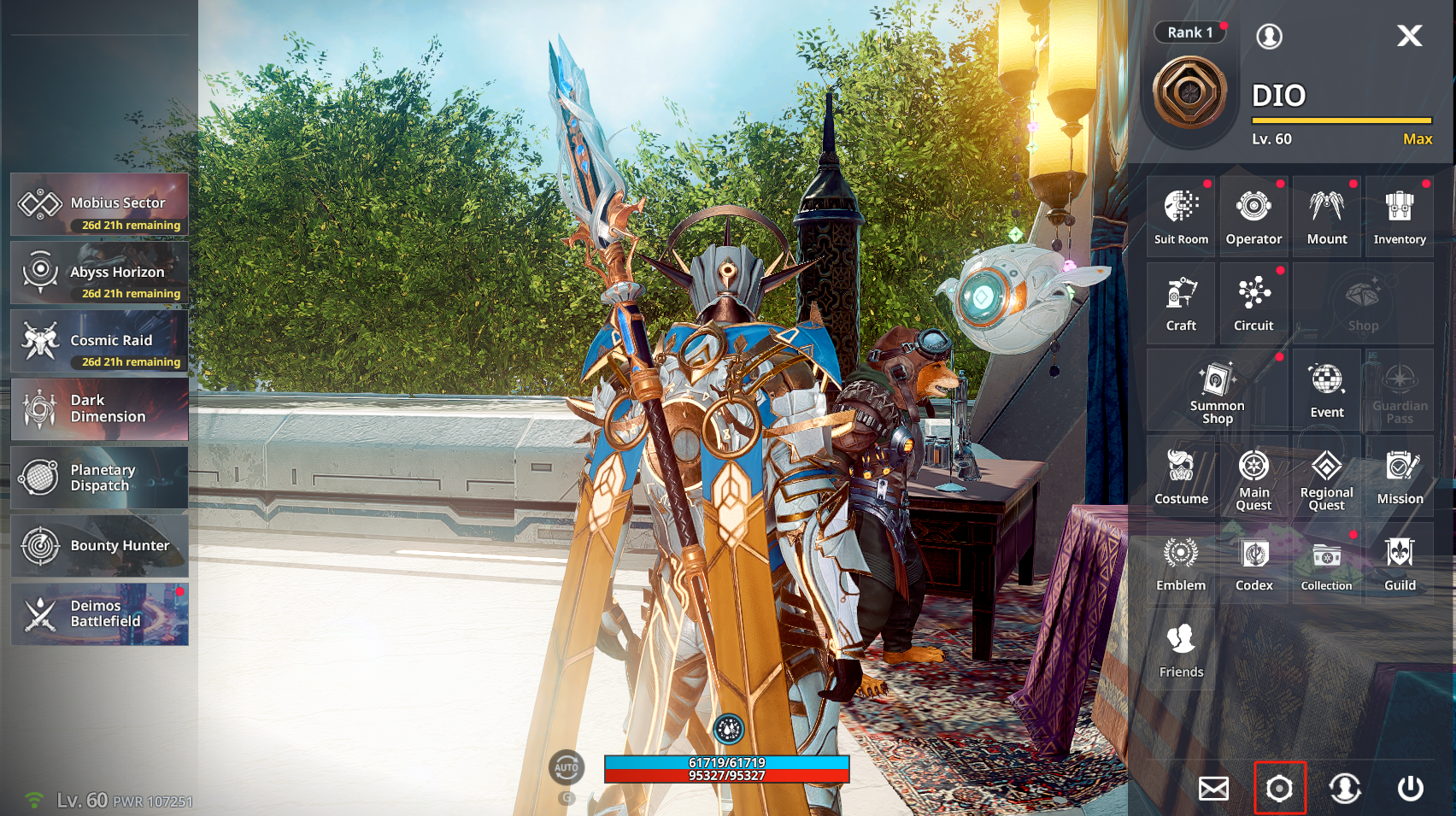
- You can access Settings via Menu ▶ Settings (gear icon) on the main screen.
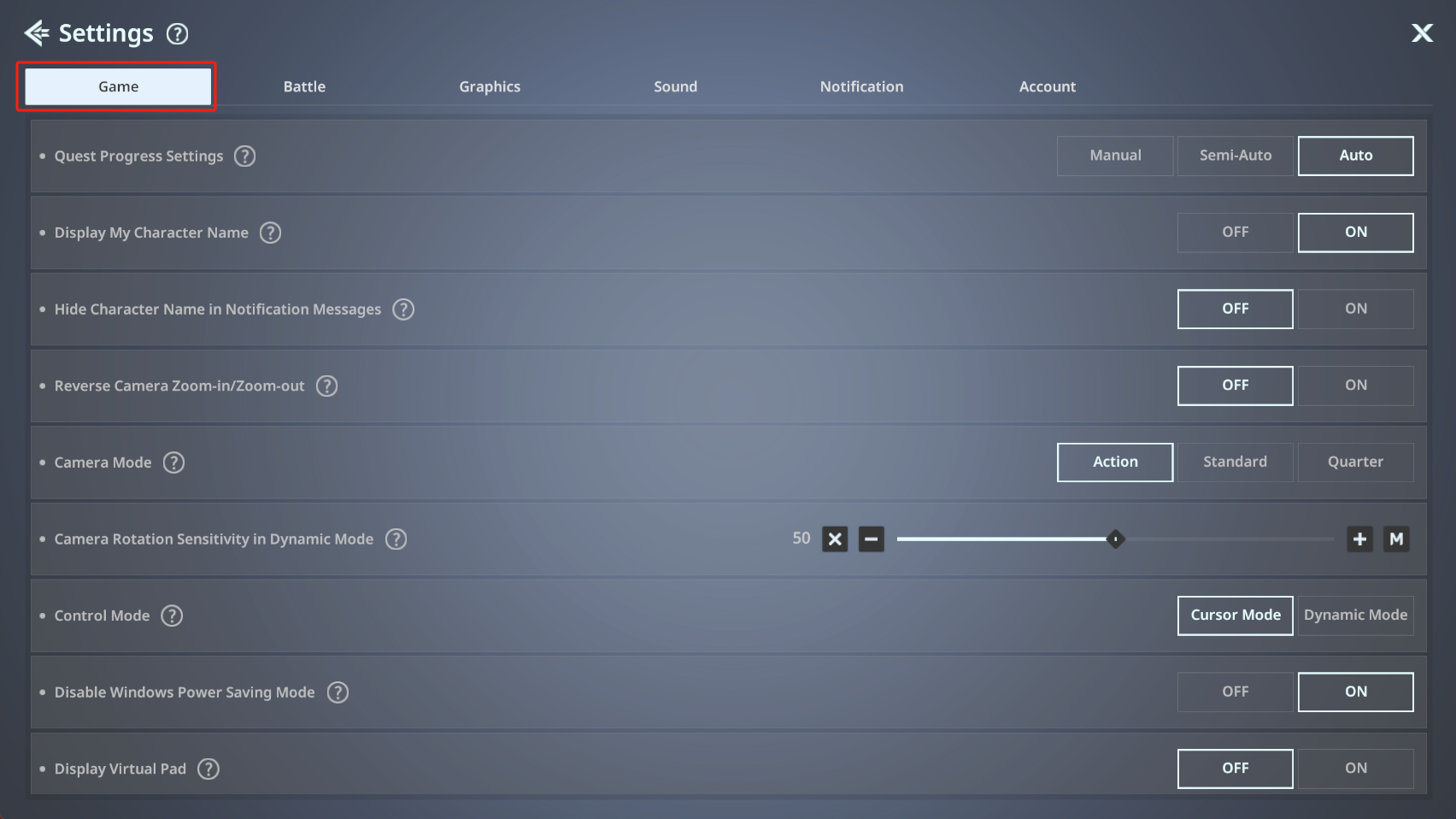
- - In the Game tab, you can configure basic gameplay settings such as
① Quest Progress Settings, ② Display My Character Name, ③ Hide Character Name in Notification Messages, ④ Reverse Camera Zoom-in/Zoom-out, ⑤ Camera Mode, ⑥ Camera Rotation Sensitivity in Dynamic Mode, ⑦ Control Mode, ⑧ Disable Windows Power Saving Mode, ⑨ Display Virtual Pad, ⑩ Change Key Settings, ⑪ Escape Isolation, ⑫ Controller Usage, and ⑬ Lock Map.
Click the ? button for detailed information on each setting.
- - In the Battle tab, you can configure battle-related settings such as
- ① Auto Battle Settings, ② PvP Battle Settings, ③ Lock-on Settings, ④ Attack Target Priority during Auto Battle, and ⑤ Cinematic Settings.
Click the ? button for detailed information on each setting.
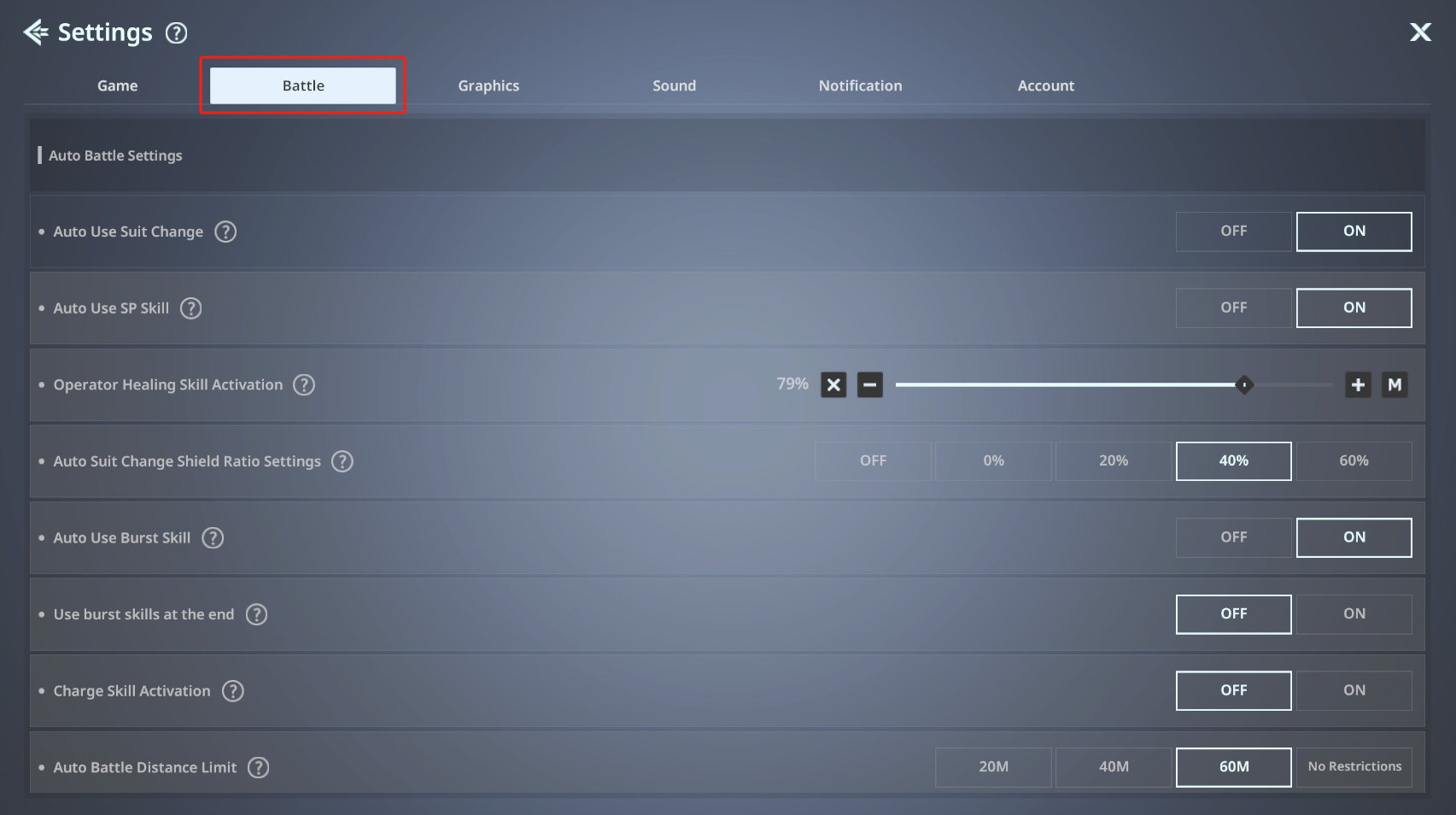
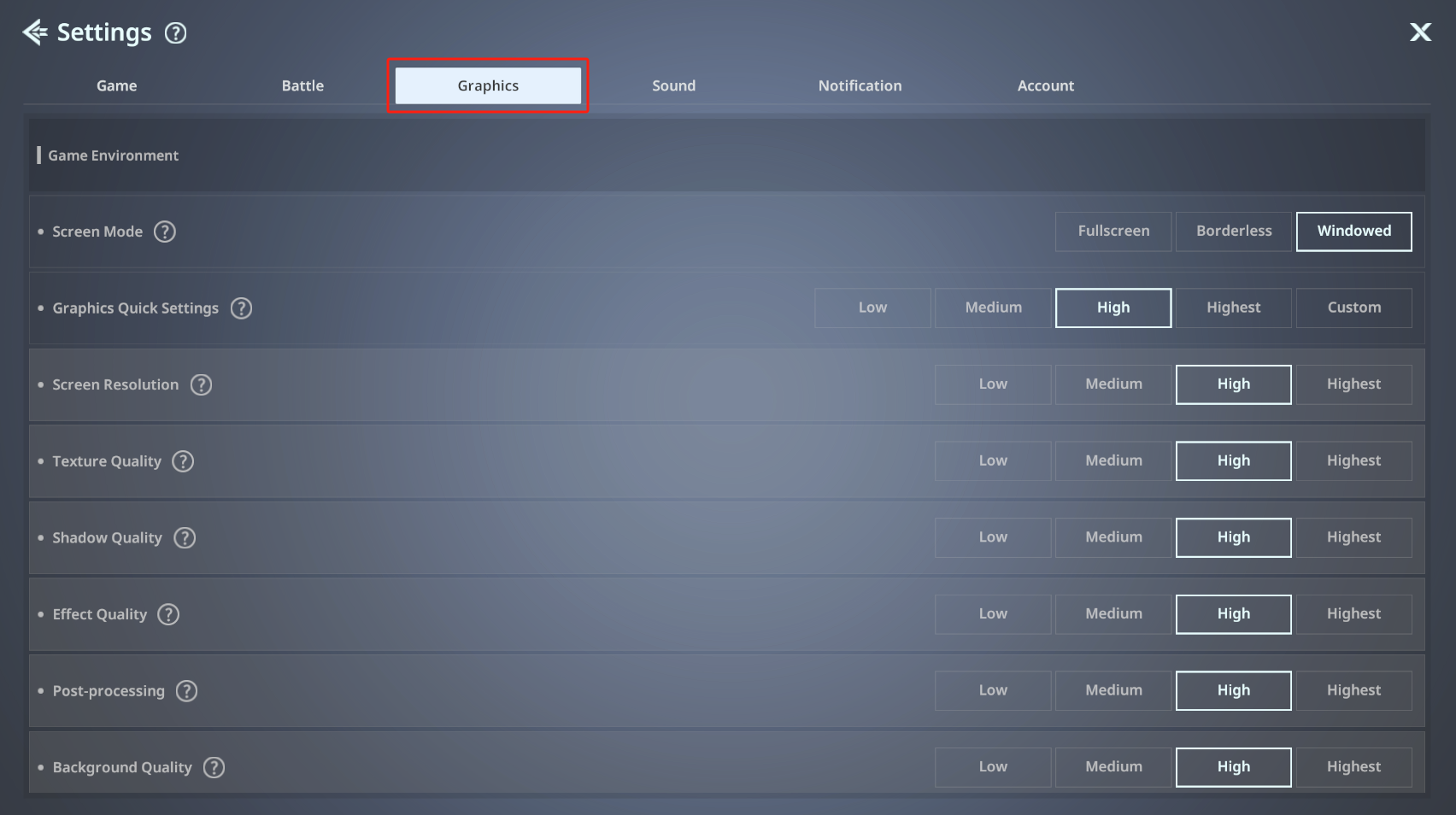
- In the Graphics tab, you can configure environment and performance optimization settings such as
① Game Environment and ② Performance Optimization Options.
Click the ? button for detailed information on each setting.
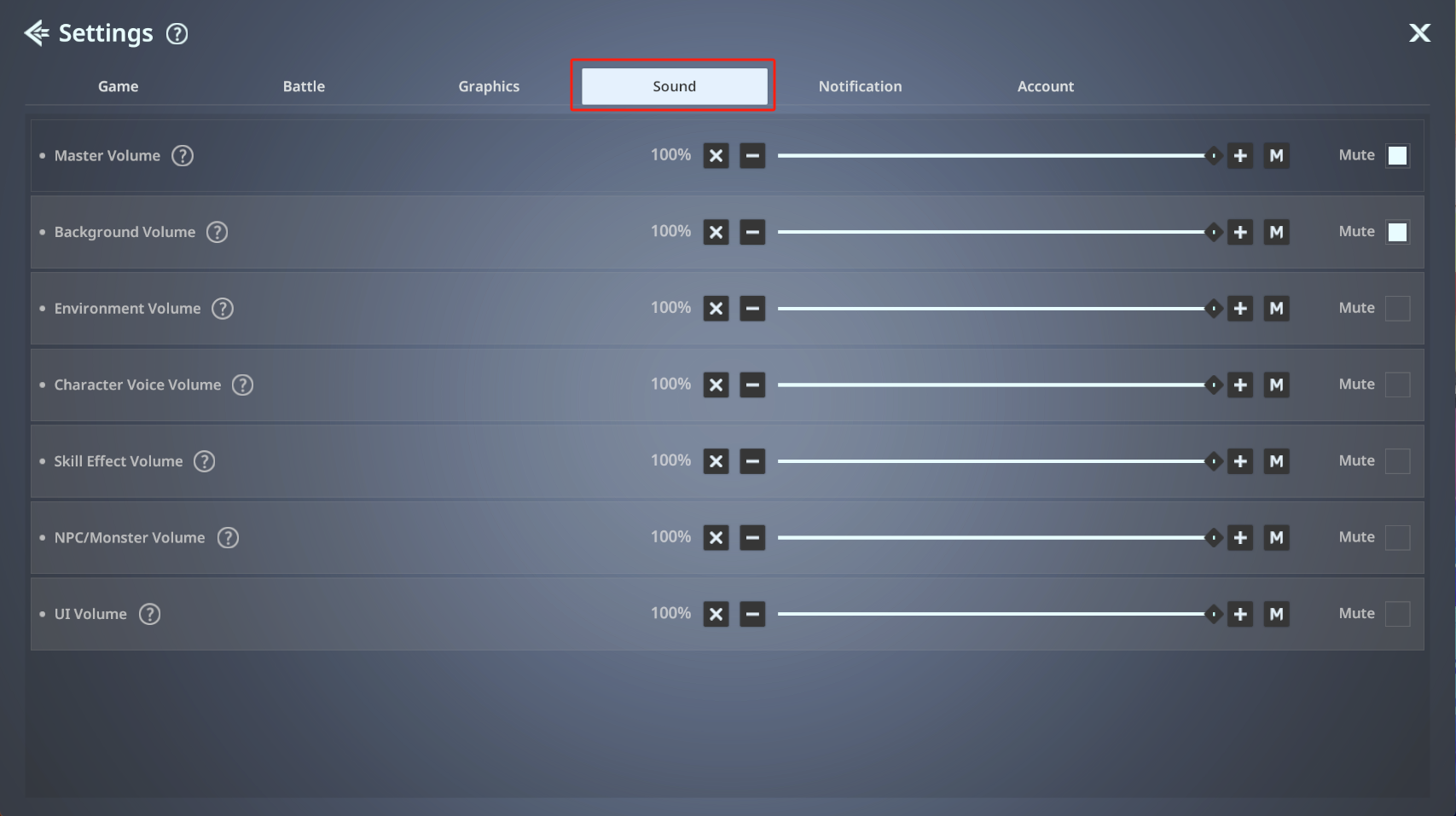
- In the Sound tab, you can configure ① Master Volume and ② Detailed Sound settings.
Click the ? button for detailed information on each setting.
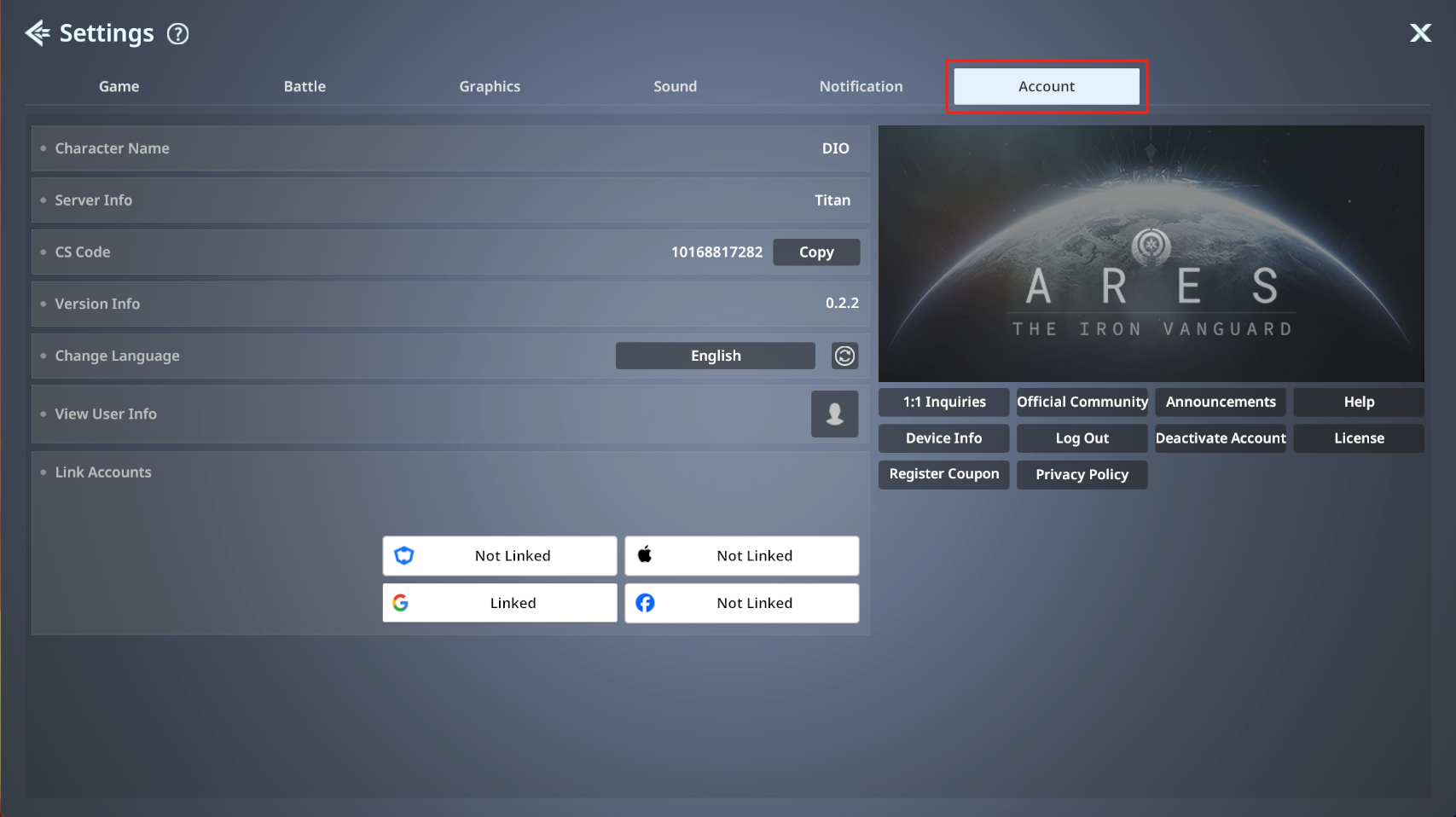
- In the Account tab, you can check account information.