
Scan
This feature helps you find monsters and players around you.
▶ How to use
You can use the surrounding detection system by selecting the target icon on the right and turning it ON.
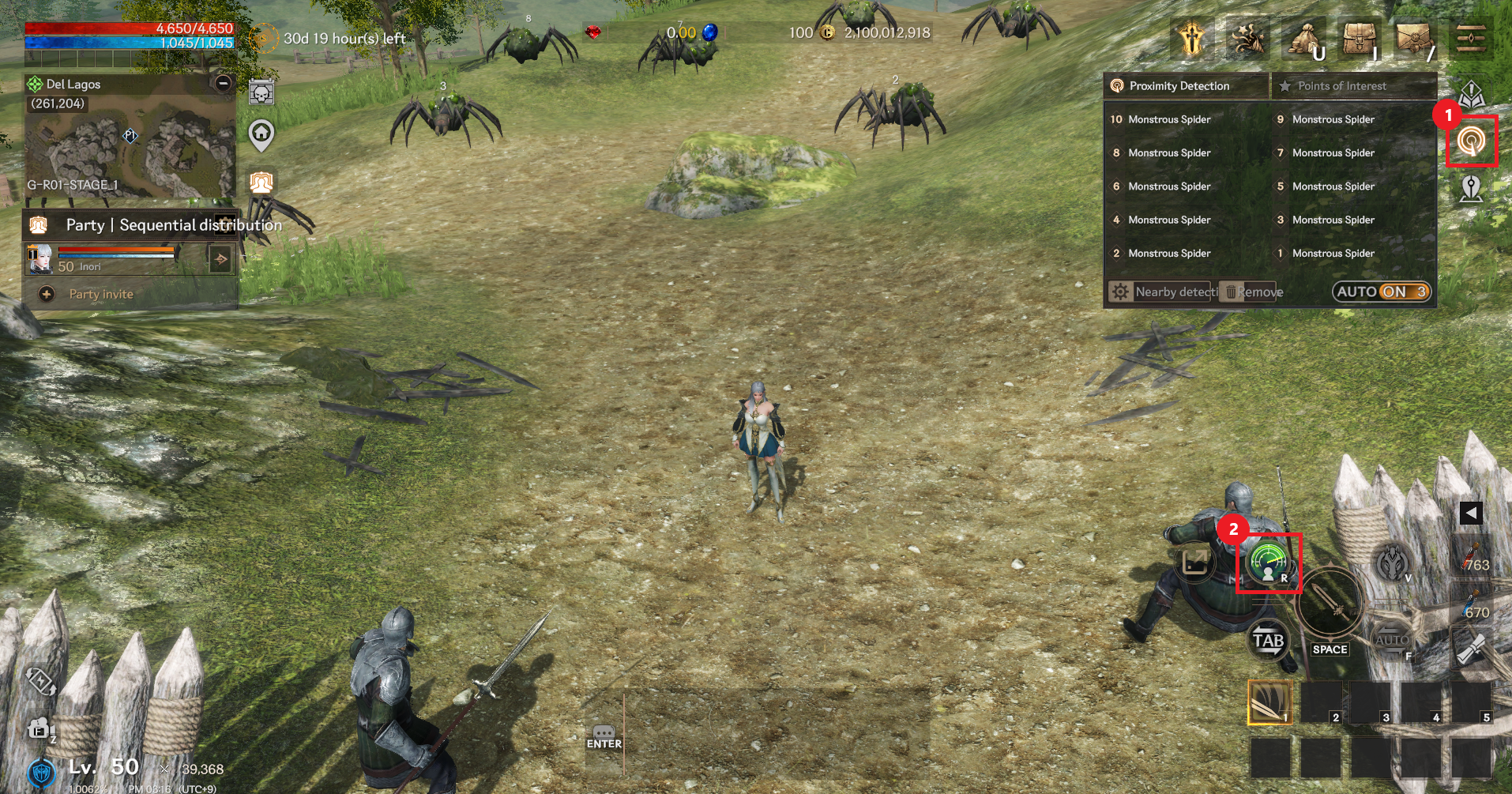
① Top right target
> When selected, you will see the scan settings, removal function and scan list window.
② Target at the bottom right
> Long press to start automatic scanning.
> Press briefly to perform a temporary scan. The scan list will be updated.
▶ Target Scan Options
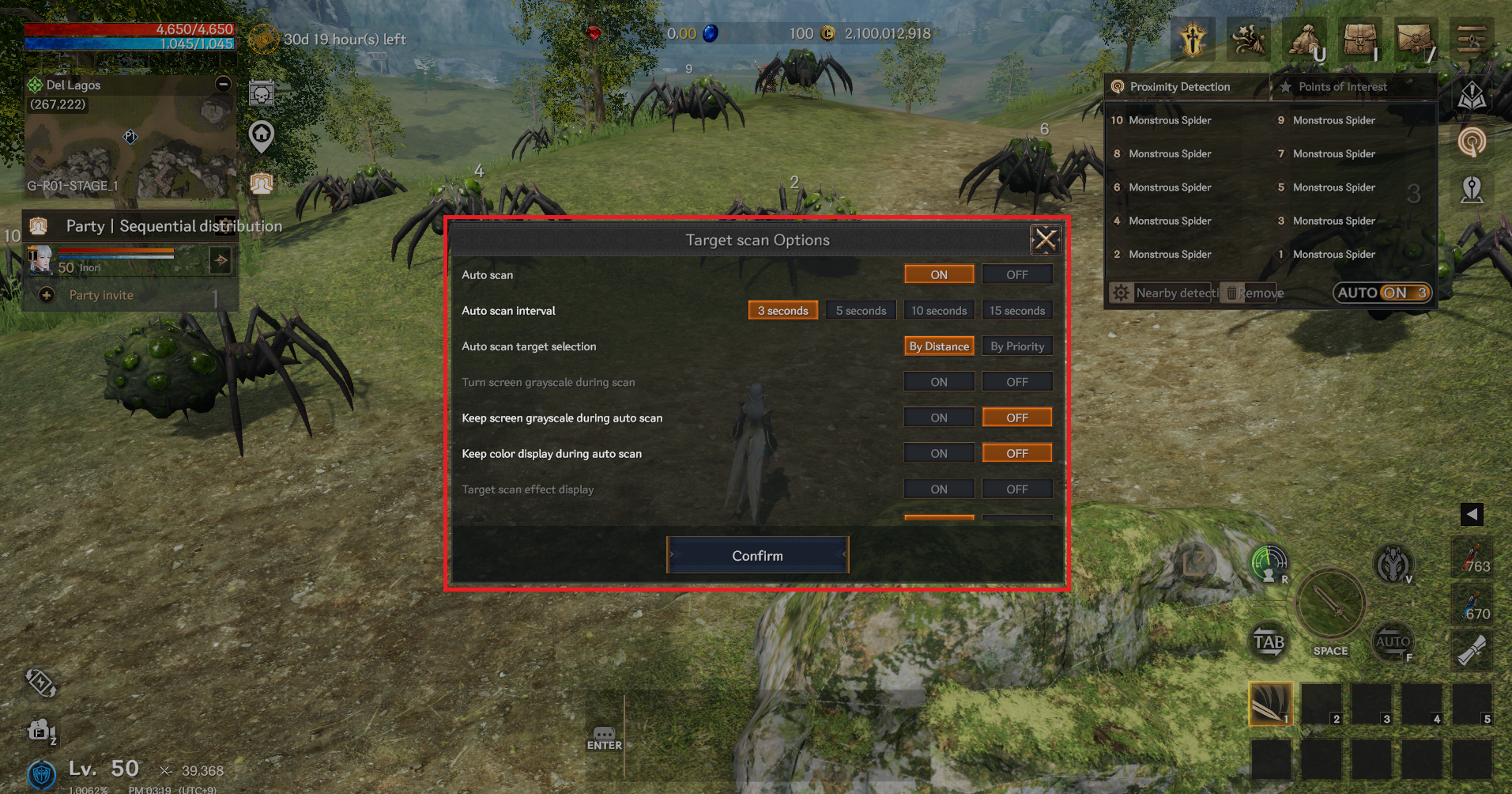
- Auto scan
> You can set automatic scan ON/OFF.
> ON: The scan list changes as you move.
> OFF: Shows the scan list as it was when turned ON and gradually disappears as you move away.
- Scan cycle
> You can select how often to re-run the surrounding scan, from 3 to 15 seconds.
- Automatic scan target selection
> You can select the auto scan target by distance and priority.
- Black and white screen processing when scanning
> After setting ON, touch the target icon at the bottom right to start scanning.
The screen will temporarily turn black and white while scanning is in progress.
- Maintain screen black and white processing during automatic scanning
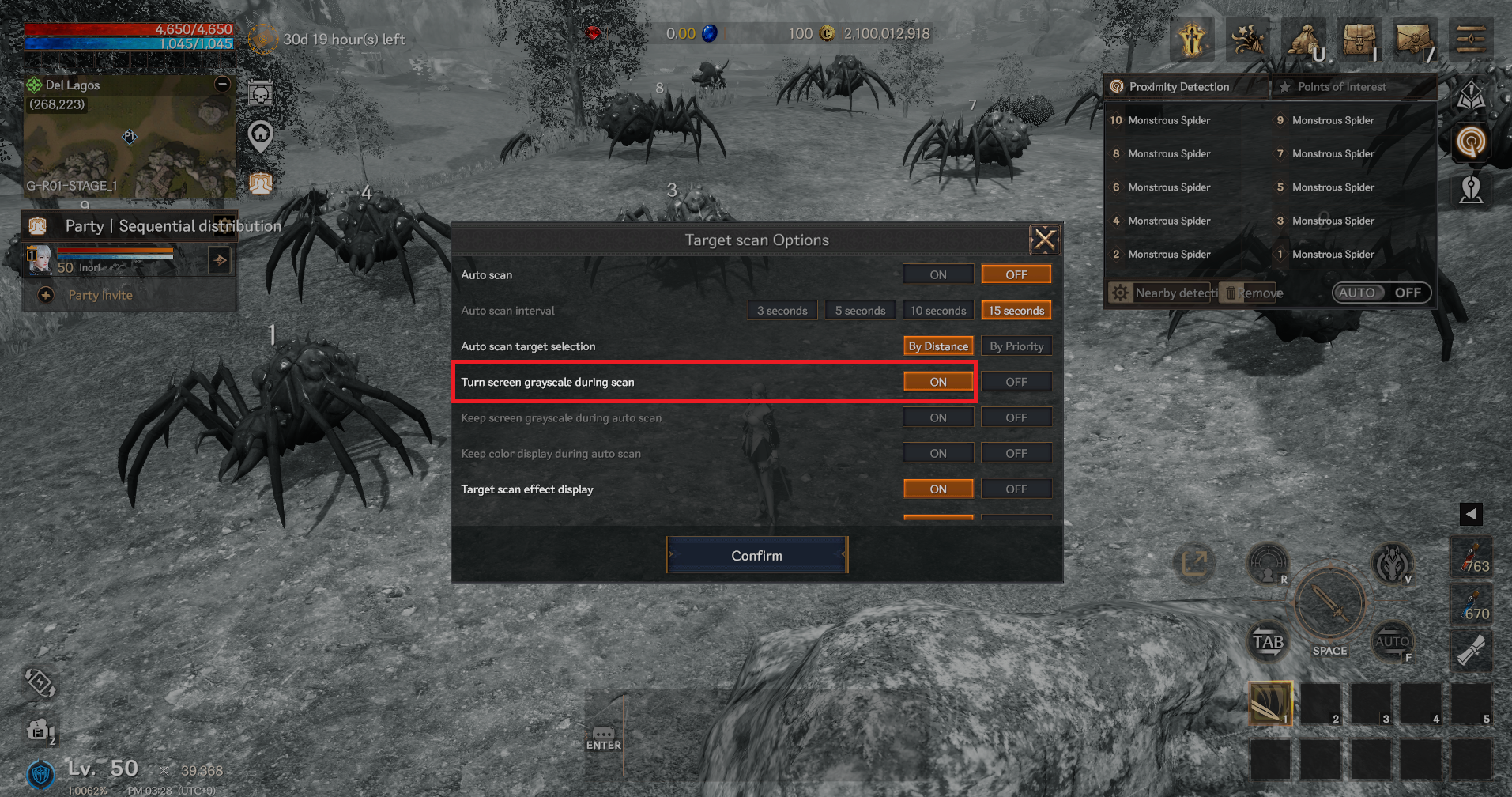
> ON: When auto scan is running, the screen changes to black and white.
- Maintain color display during auto scan
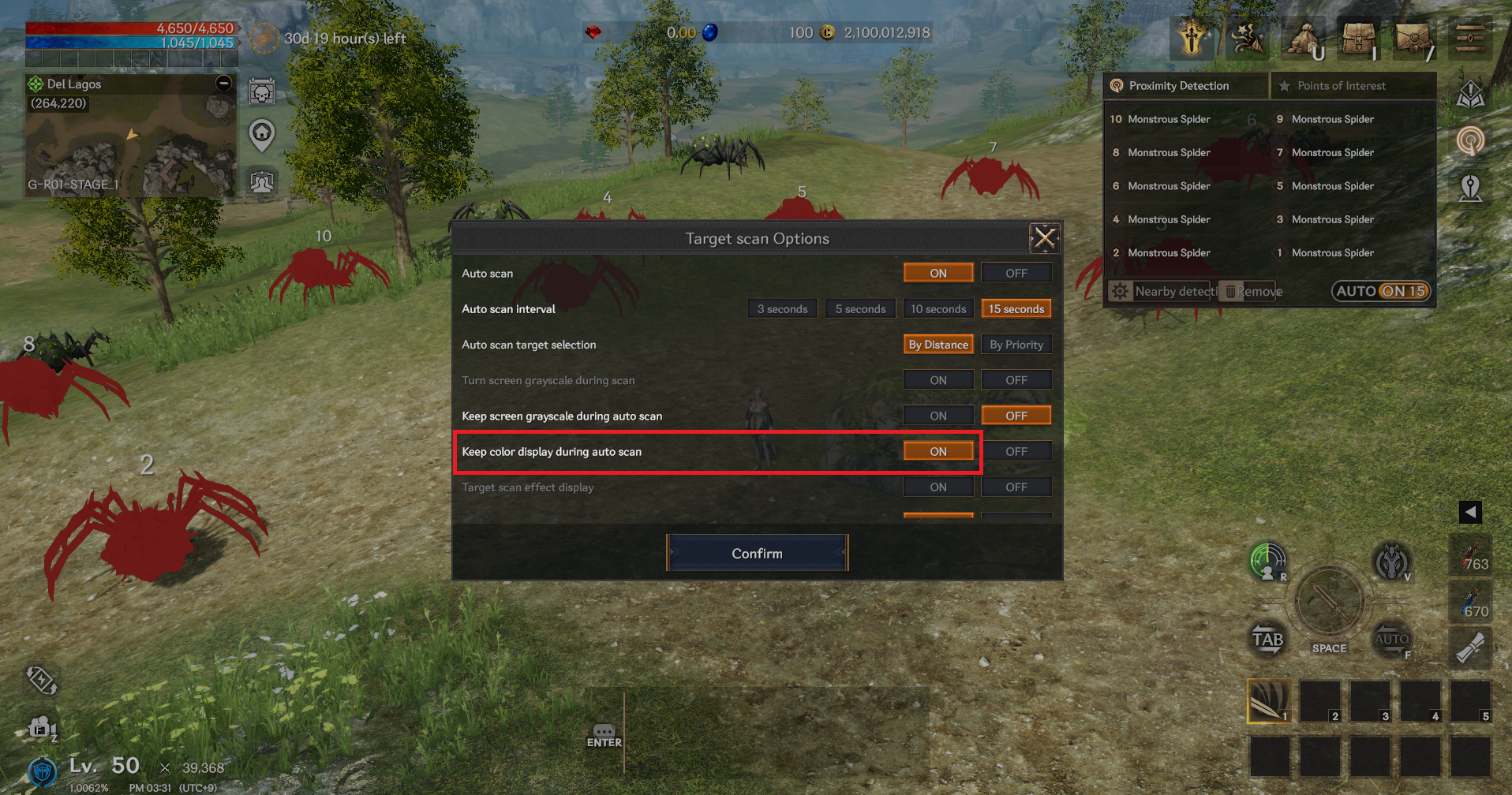
> ON: Applies a bright color to the scanned monster to make it stand out.
> The target type can be set to various types, including special monsters, players, and monsters.
▶ Remove
> When auto scan is ON, it searches for new surrounding surveillance targets.
> If auto scan is OFF, the scan target is deleted.