Mailbox
Mailbox
The mailbox is a space where you can receive items awarded through events.
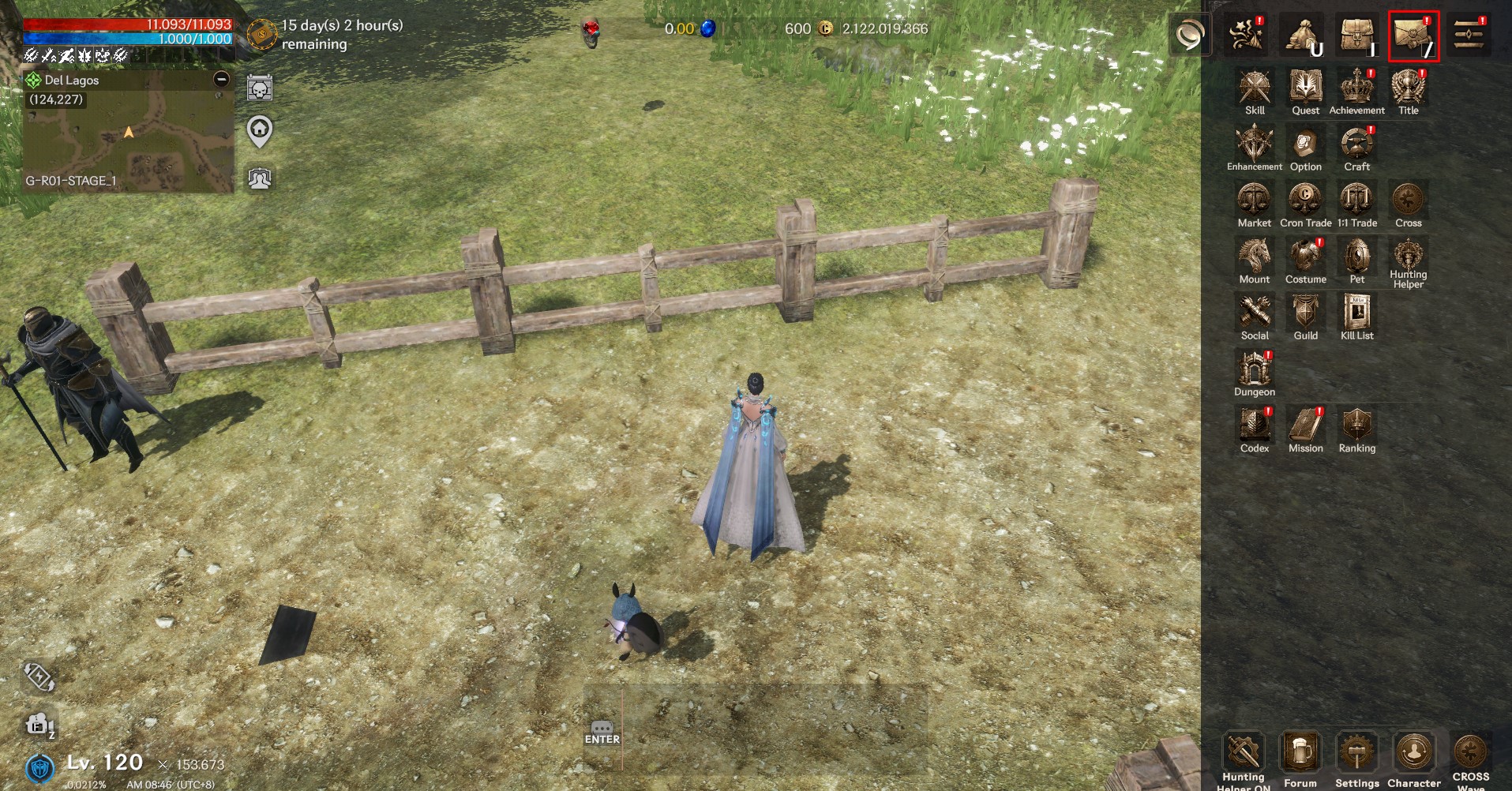
You can access your mailbox by clicking the crown icon (shortcut key: /) in the upper right corner.
▶ Mailbox screen
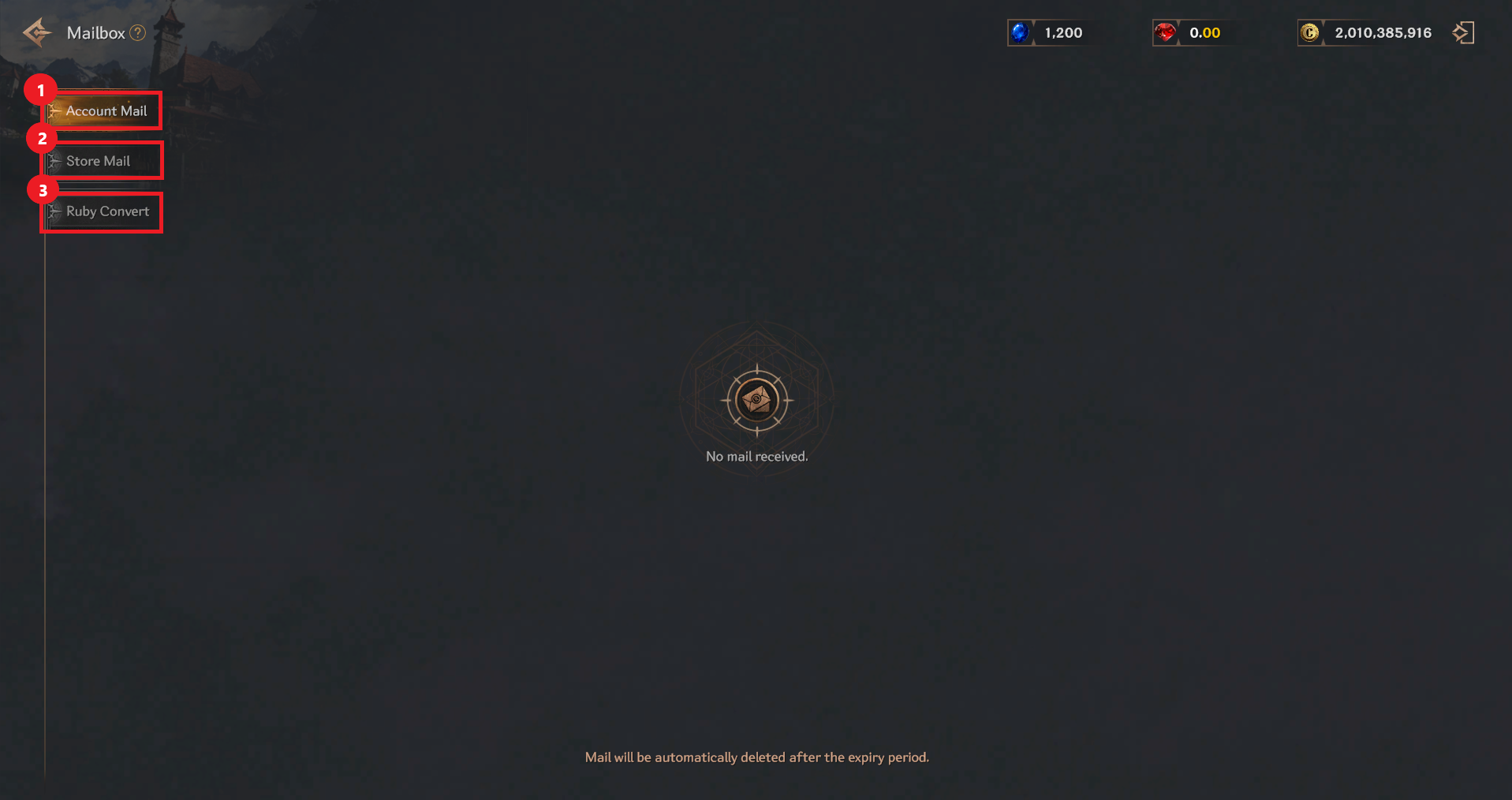
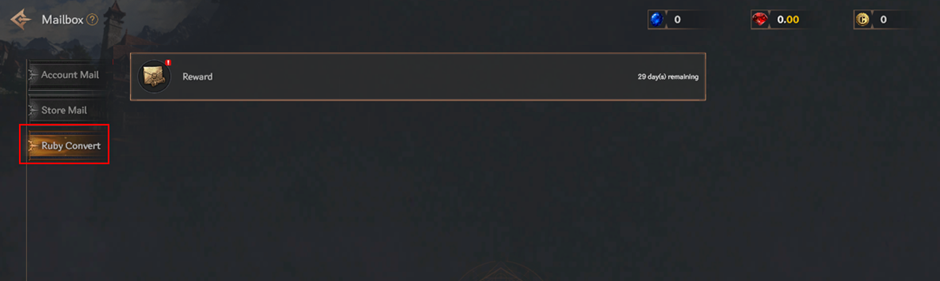
① You can check your account mail.
> This is mail that can be shared by all characters on an account.
> If you have already received the mail, you cannot receive it again with another character.
② You can check the store mail.
> This is the mail you receive for items purchased at the store.
③ You can check the sRuby / RubyX convert history conducted through CROSS RAMP
▶ What is CROSS Ramp?
CROSS Ramp allows you to convert your in-game assets into blockchain tokens, or convert tokens back into in-game assets. You can experience Web3 seamlessly, without dealing with complicated exchanges or wallet setups, all inside the game.
▶ Wallet Connection
You can prepare for token minting and exchange by connecting to your CROSS Wallet through the in-game CROSS menu.
- To connect your wallet, you need to click [Menu] → [Cross] menu in the upper right corner of the main screen.
▶ How to use
Connecting the Wallet
You can prepare for token minting and exchange by connecting to your WEMIX Wallet through the in-game Token menu.
- Enter the Cross menu and you will be greeted with the Wallet Connect screen.
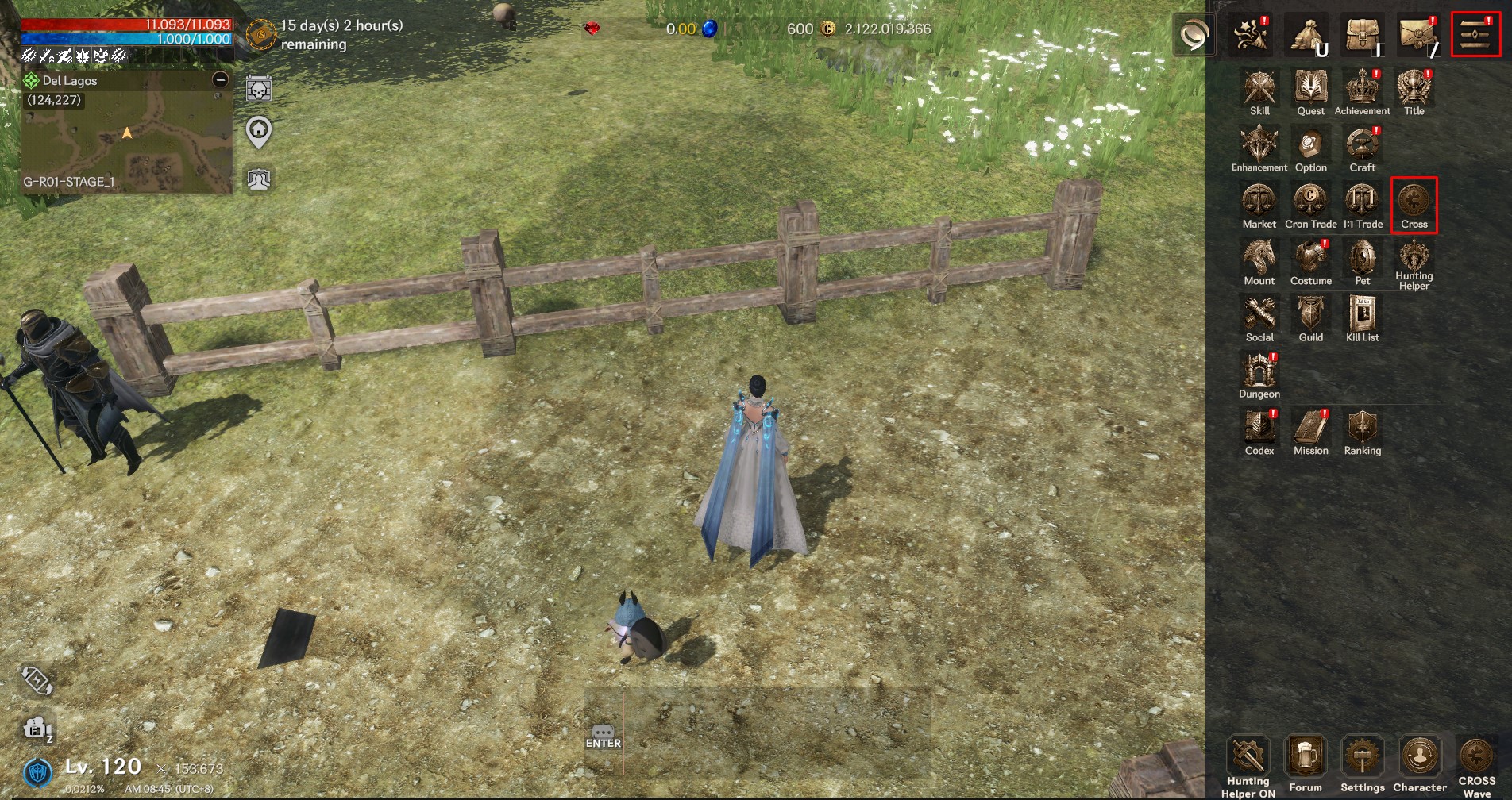
▶ How to use
1. Connecting Wallet
- Enter the Cross menu and you will be greeted with the Wallet Connect screen.
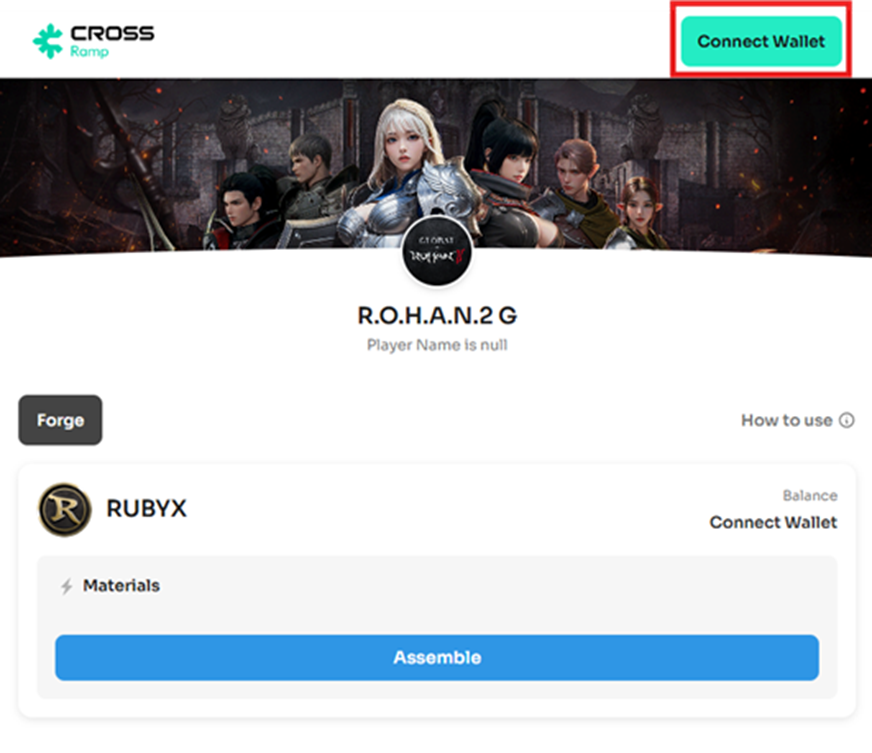
- Click the "Connect Wallet" button at the top right to link your CROSSx Wallet. If the app isn't installed, you'll be redirected to the App Store or Play Store.
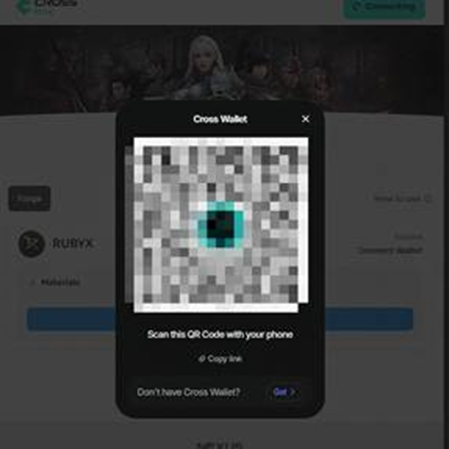
- Scan the QR Code with the CROSSx App to complete the linking process. Once connected, you'll be able to check your token balance and access all features of CROSS Ramp.
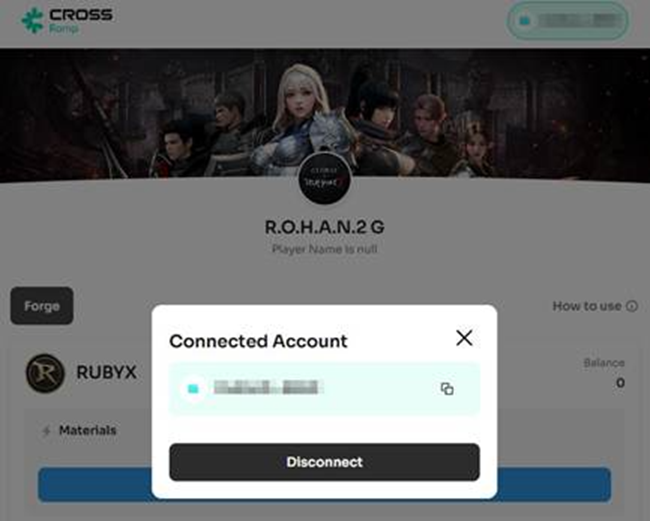
- When the wallet connection is completed, the wallet address will be displayed in the upper right corner, and clicking that button will show <Wallet Information>
- You can click “Disconnect” button to connect with another wallet
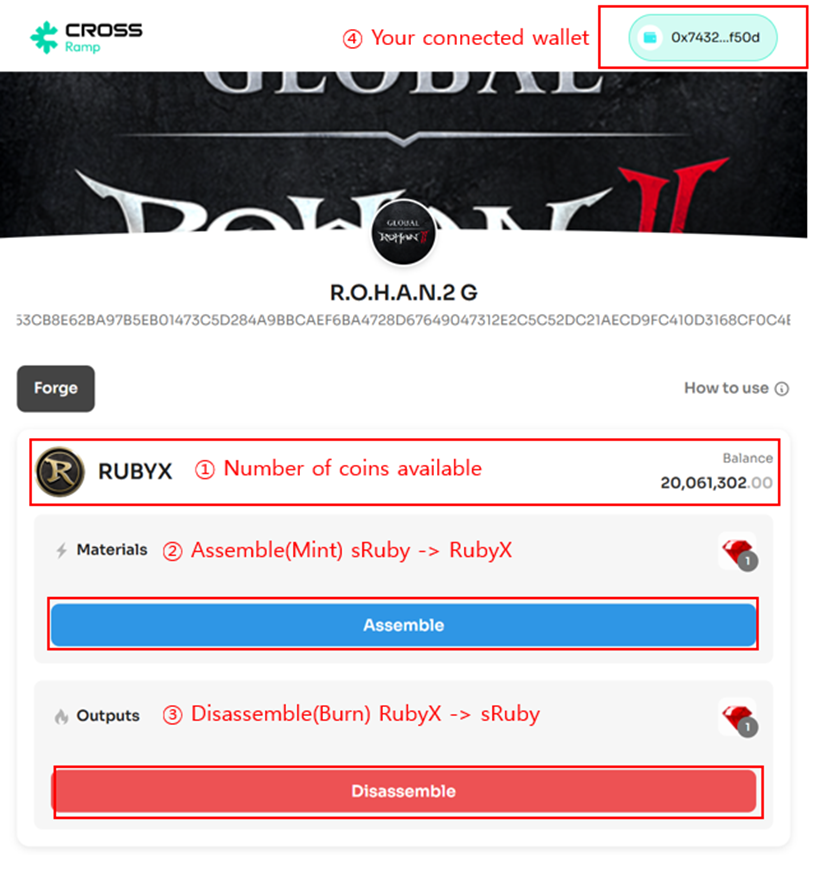
2. Select a Pair
Check the list of available Pairs that allow you to exchange tokens and game assets. For each Pair, you can view:
• The Materials (required game assets) to assemble a token
• The Outputs (game assets you'll receive) when you disassemble a token
3. Choose 'Assemble' or 'Disassemble'
Depending on the Pair settings, either an 'Assemble' or 'Disassemble' tab (or both) will be available.
• To create tokens using game assets, select the 'Assemble' tab
• To receive game assets by breaking down a token, select the 'Disassemble' tab
※ Some Pairs may only support one direction: either Assemble or Disassemble.
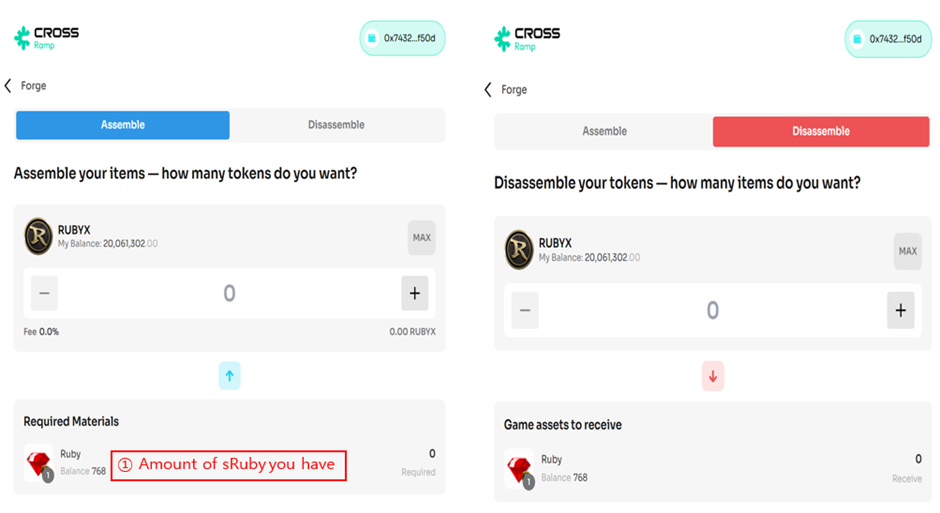
4. Enter Amount & Sign
Enter the amount to Assemble or Disassemble, and you'll instantly see:
• The Materials (game assets) that will be consumed
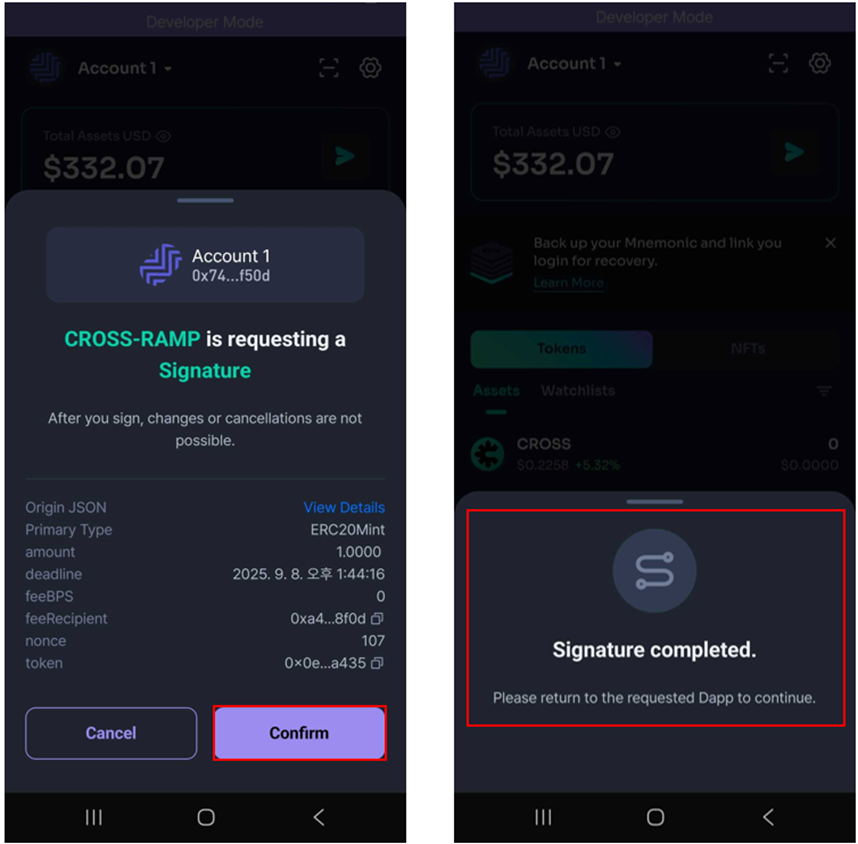
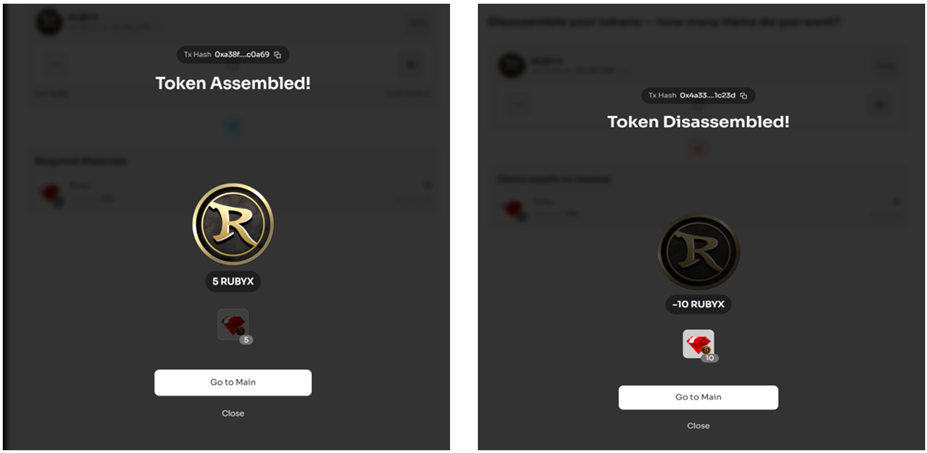
• The Outputs (tokens or game assets) you'll receive Once everything looks good, click the "Exchange" button and complete the process by signing in your CROSSx Wallet.
You can receive ruby by clicking [Menu] → [Mail box]
Fees
A fee is charged only when assembling tokens. The fee is calculated as a percentage of the token amount being assembled and is automatically deducted from the tokens you receive. No fees are charged when disassembling tokens.
Important Notes
Wallet connection is required to use any Assemble or Disassemble functions, and to check your token balance. If you don't have enough materials or tokens, you won't be able to proceed with the exchange. Some Pairs may support only Assemble or only Disassemble, meaning the conversion cannot be reversed. Please double-check the direction before proceeding.