Inventory
In this guide, we will walk you through the Inventory,
where you can store and check your valuable equipment and consumable items.
Please read on for more details.
※ ARES: THE IRON VANGUARD is available on both mobile devices and PC.
Please note that this guide is based on the PC version.
* This guide was created in a test environment, and some content may be subject to change.
◈ Inventory: How to Access
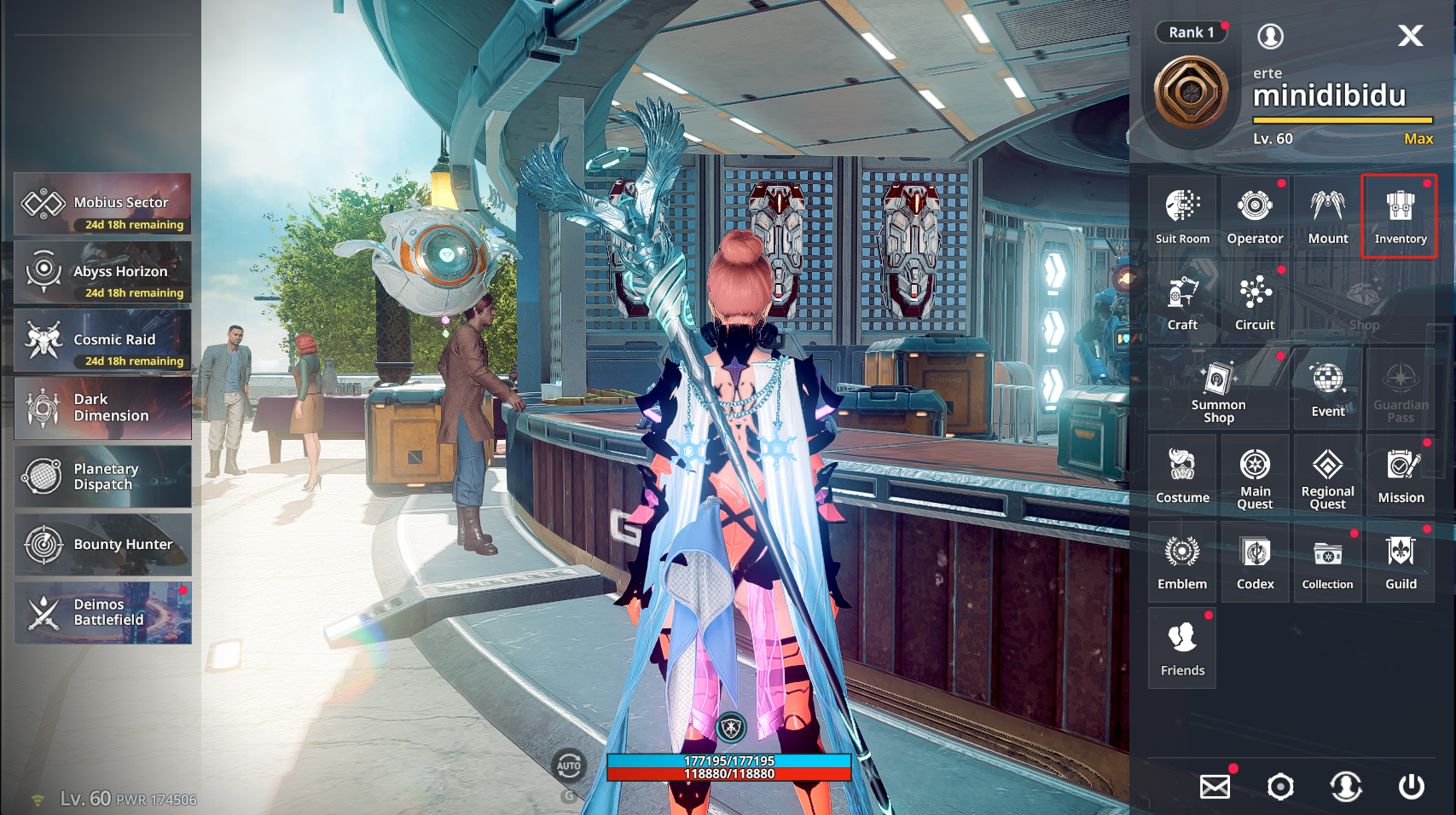
- You can access the Inventory via Main Screen ▶ Inventory.
◈ Inventory: Usage Guide
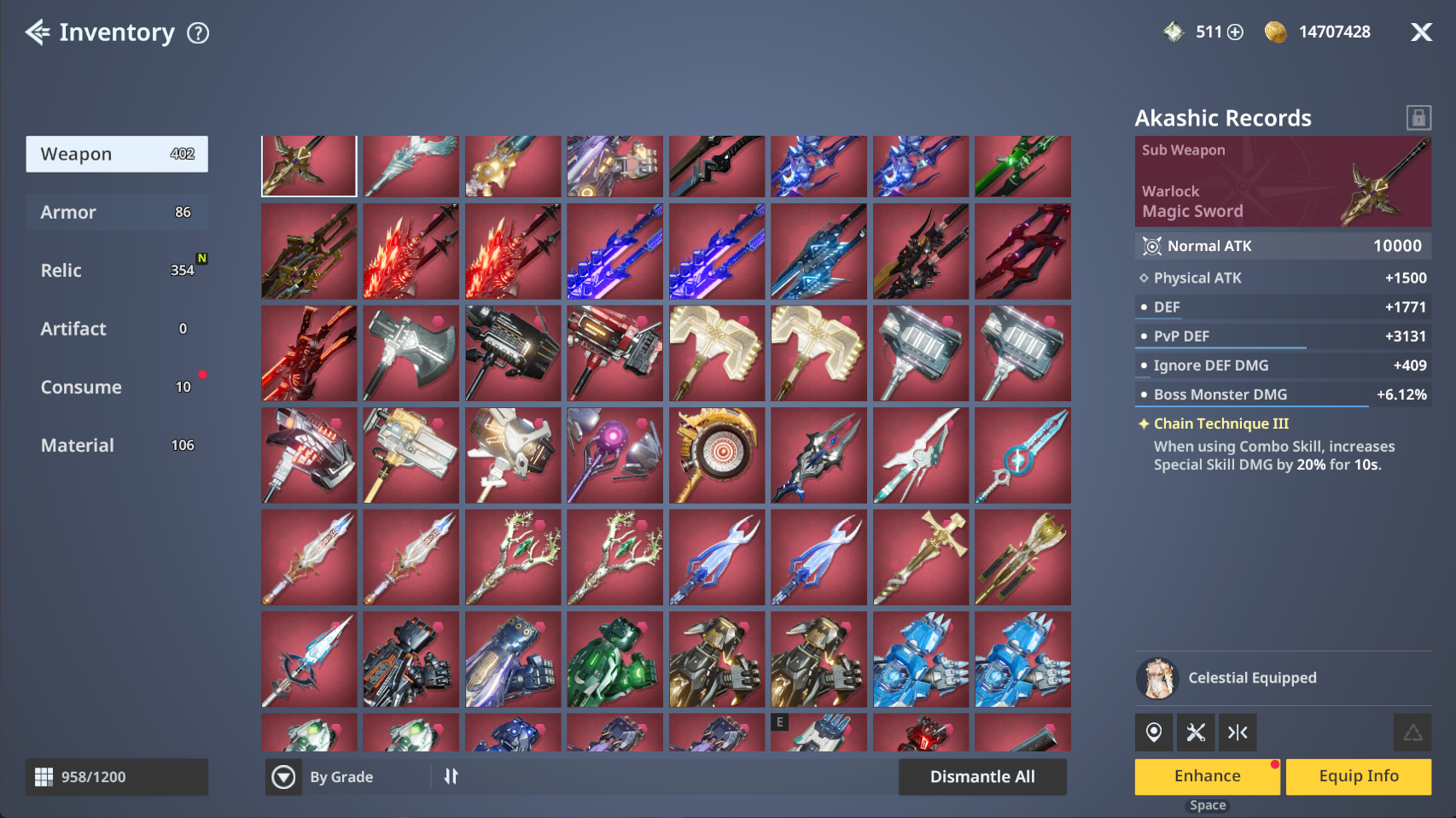
- In the Inventory, you can view all owned items, including Weapons, Armor, Relics, Artifacts, and consumables.
ⓘ You can sort items by Grade or Type for easier viewing.
ⓘ All items in the Inventory can be locked. Please note that locked items cannot be sold, dismantled, or enhanced.
* Artifacts will be available after the official release.
◈ Inventory: Quick Features
- Click an item to access quick options such as Item Source, Craft, Compare Equipped Item, and Dismantle.
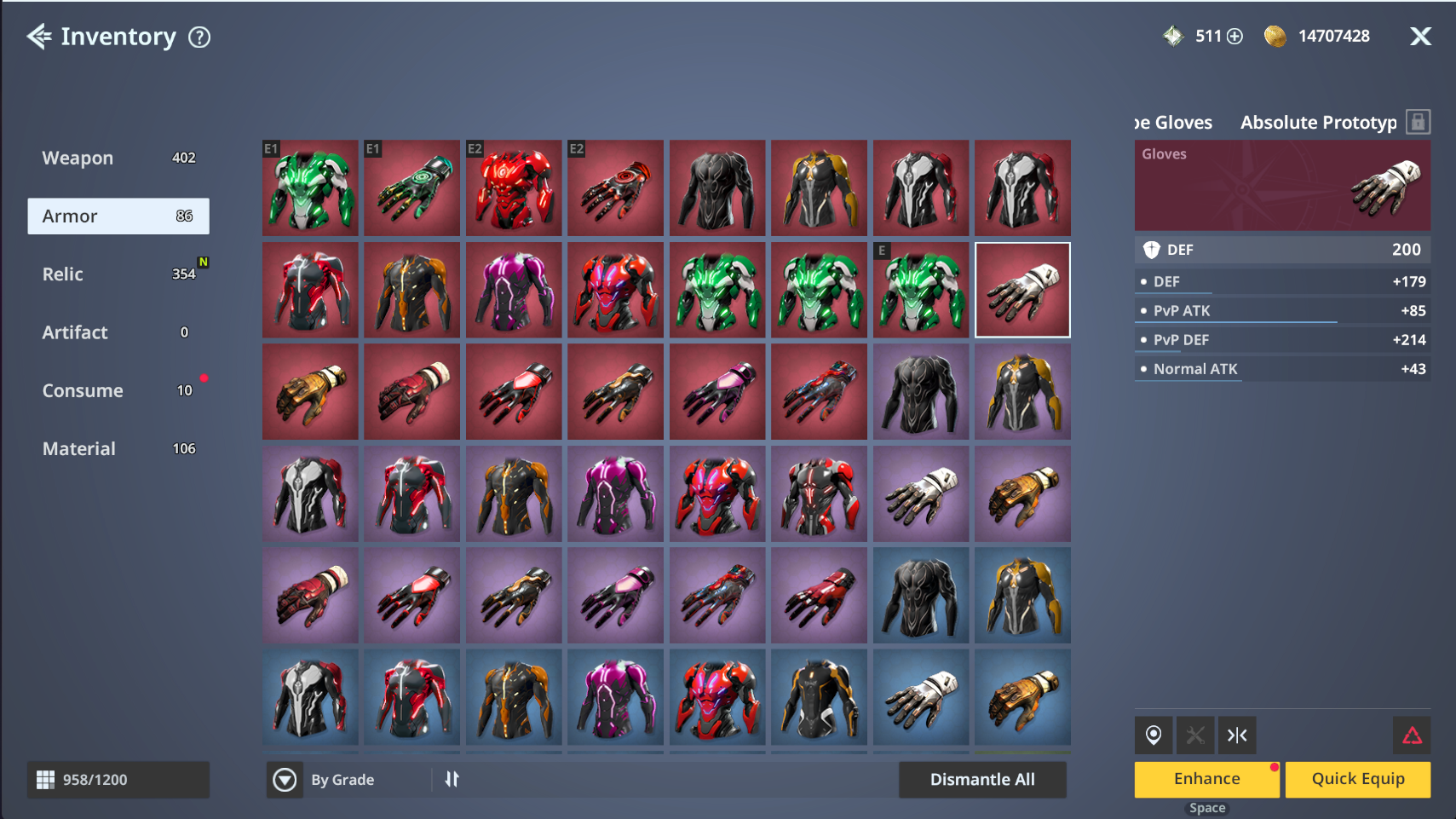
ⓘ Click the Compare Equipped Item icon to compare stats with currently equipped gear.
ⓘ Click the Dismantle icon to immediately dismantle the selected item(s).
ⓘ Click the Craft icon to move to the crafting screen and view crafting details.
- The Craft feature is available only when the item can be crafted.
◈ Inventory: Dismantle All Conditions
- When you select the Dismantle All button, the Select Dismantle button is activated,
allowing you to conveniently select and dismantle items in bulk by grade.
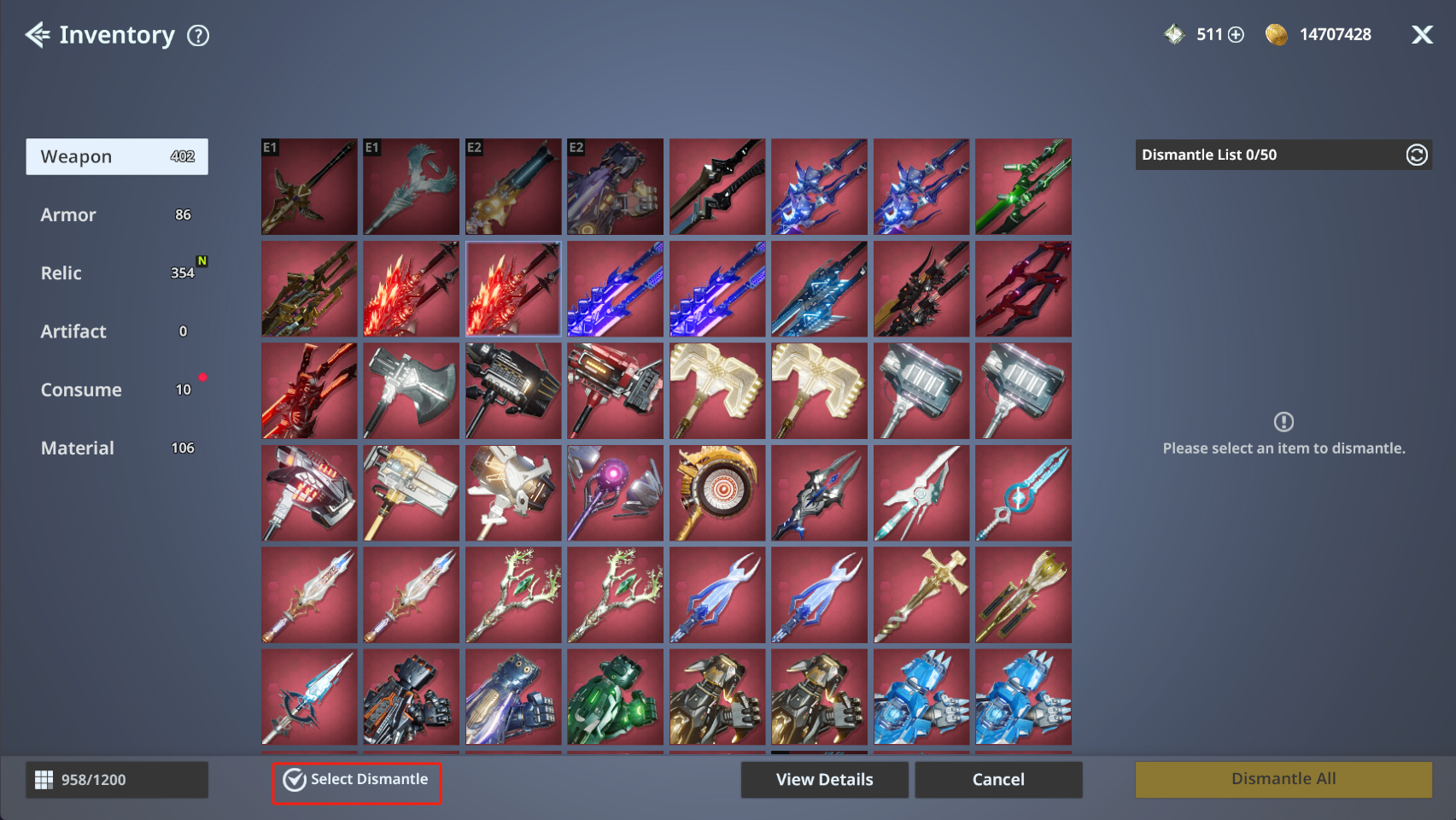
- Selecting the Dismantle All button activates the Select Dismantle feature at the bottom.
ⓘ You can set batch dismantle conditions through the Select Dismantle feature.
ⓘ After selecting an item grade and clicking the Apply button, items matching the conditions are automatically added to the dismantle list.
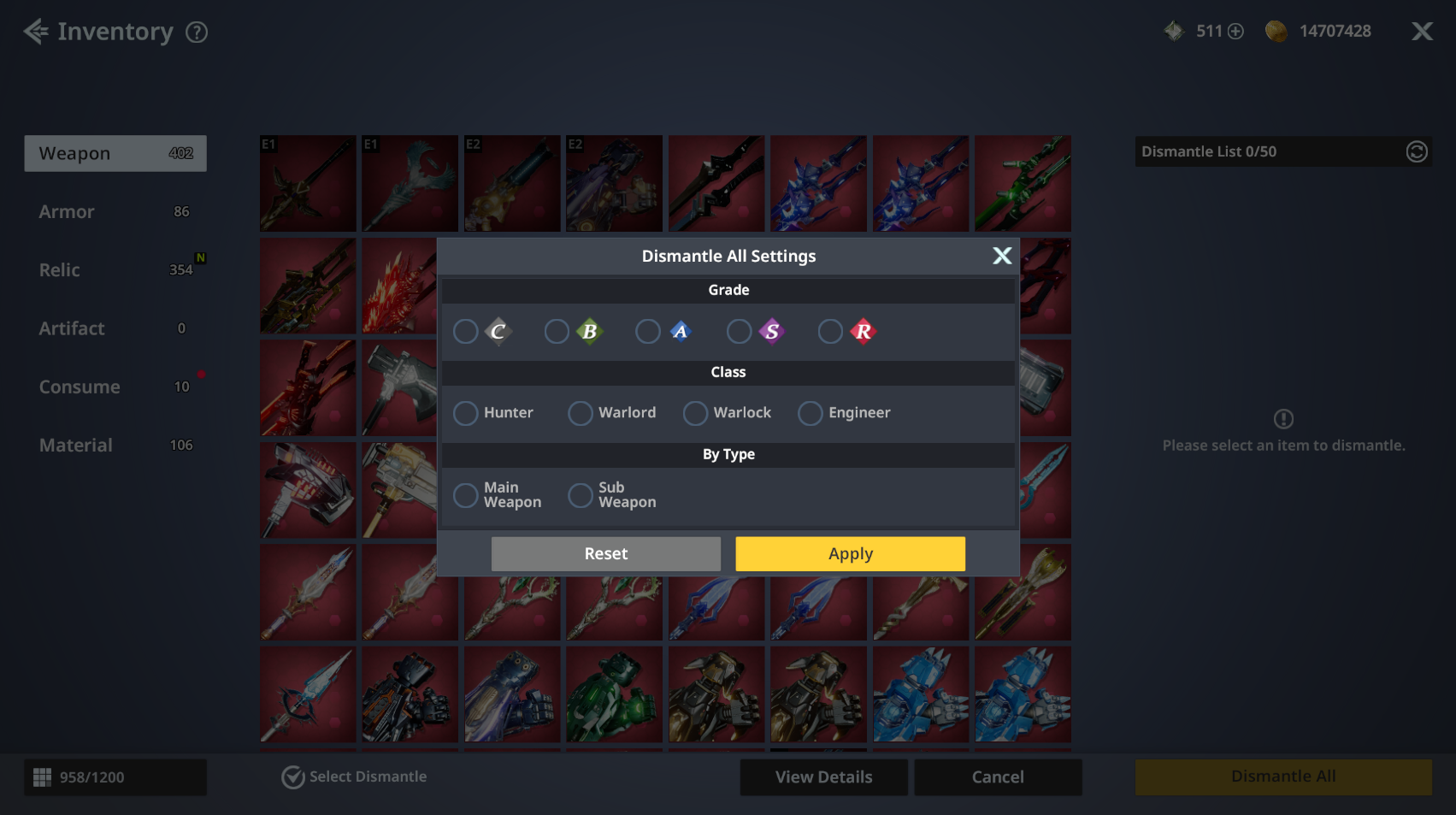
ⓘ Dismantled items are permanently removed, so please check carefully before dismantling.